



Microsoft Teams review
 Analysis by GetAllApps
I think of Microsoft Teams less as a chat app and more as a shared workroom that happens to fit in a pocket. It is useful when a conversation needs to turn into a meeting, a file handoff, or a continuing group discussion without scattering everything across separate apps. That combination is its strongest argument—and also the reason it can feel like more than some people need.
Where Teams fits into everyday work
Microsoft Corporation’s business app is free to install, rated for Everyone, and has an average rating of 4.6 from around 8.8 million ratings. It has passed 500 million installs, which reflects how widely it is used, though popularity alone does not make it the right fit for every team. I’d consider it first when coworkers already rely on Microsoft’s work tools or when a group needs a single place for messages and scheduled conversations.
The current Android version is 1416/1.0.0.2026183002. Teams was released on November 2, 2016, and its present role is familiar: bring people together for chats, meetings, and collaboration. In practice, the value comes from keeping related work close. Instead of searching through a personal messaging app for a decision made during a call, you can keep the discussion within the same work environment.
That does not mean every exchange belongs in Teams. A quick, informal message can feel slower here than in a lightweight messenger, especially if you have to find the right work account or conversation first. I see it as a better home for ongoing work than for casual communication with people who do not share a team or workplace context.
One conversation can lead to the next task
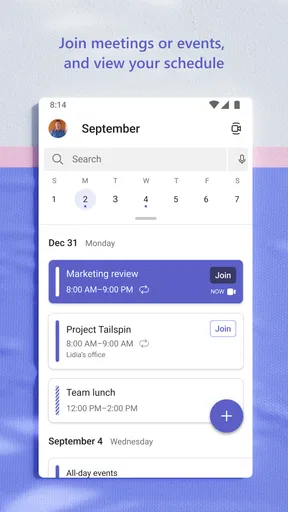
A realistic example is a small project group preparing a presentation. Someone can start a group discussion about the outline, use a meeting to settle open questions, and return to the same conversation to coordinate the next steps. The practical benefit is continuity: the team has fewer reasons to split the work between a chat app, a meeting tool, and scattered follow-up messages.
For a hybrid team, that continuity can matter more than a long feature checklist. People who miss a live conversation can still rejoin the work through the group’s ongoing discussion, while those in the meeting can use the chat as a place to clarify details. I would still agree on simple team habits—where decisions go, how urgent requests are marked, and when a meeting is actually necessary—because an all-in-one workspace can become noisy if everyone uses it differently.
Small habits that make it easier to use
My first practical tip is to keep conversations organized around the work rather than treating Teams as one giant inbox. When a discussion has a clear purpose, it is easier to return to it later and to keep unrelated questions from crowding it out. This matters most in a busy group where a single chat can otherwise mix deadlines, quick reactions, and decisions that deserve a more durable home.
A second useful habit is to separate “we need to talk” from “we need to meet.” Teams makes meetings part of the same work setting, but not every question warrants pulling people into a call. I would use chat for a straightforward update or a request that can wait, and reserve a meeting for a subject that benefits from back-and-forth discussion. That simple distinction helps protect focus instead of turning the app into a constant stream of interruptions.
Third, I would close the loop after a meeting in the conversation where the work is already happening. A concise summary of the decision and who is taking the next step can make the meeting useful to people who were not present and reduce the chance that the same topic has to be reopened. This is a workflow choice rather than a special trick, but it is one of the easiest ways to get more value from having chat and meetings together.
How it compares with familiar alternatives
Compared with a basic messaging app, Teams is more oriented toward organized work and group coordination. A general-purpose messenger is often easier for quick personal exchanges, and a standalone meeting app can be a simpler choice if all you need is a call. Teams makes more sense when you want the conversation and the meeting to belong to the same work context rather than maintaining separate habits in several tools.
That convenience has a trade-off: the app can feel heavier than a focused chat client. New users may need time to understand which conversation to use and how their organization expects people to communicate. If your group only exchanges occasional notes, a simpler messenger may be less distracting. If your work involves recurring discussions and meetings, the extra structure can earn its place.
What existing users should expect from an update
The current version number is useful as a way to identify the build installed on a device, but it does not by itself tell me what has changed in a particular update. I would not treat a version change as proof of a new capability or a redesigned workflow. For existing users, the sensible approach is to check the app’s own update notes when installing a newer build and then see whether their everyday tasks have actually changed.
Teams has been around since 2016, so established users may already have routines built around it. When updating, I would pay attention to the basics that affect those routines: whether chats are easy to resume, whether meetings remain convenient to join, and whether the app continues to feel manageable on a phone. Those are more meaningful measures for day-to-day use than assuming every release will alter how a team works.
There is also a human side to keeping a long-running collaboration app current. A colleague may use Teams mainly for meetings, while another depends on it for group messages. A change that feels minor to one person can affect the other’s routine. If a team depends on the app for time-sensitive coordination, I would avoid changing everyone’s habits at once; try the updated workflow with a small, ordinary task first, then adjust shared conventions only if there is a clear benefit.
Limits worth considering before you commit
The biggest drawback is organizational overhead. Teams works best when people know where to put a conversation and when to move it into a meeting. Without that shared understanding, messages can multiply and important details can get buried among less useful chatter. The app can provide a common place, but it cannot decide which messages deserve attention or make a team’s communication habits clear.
It may also be the wrong choice for someone who wants a simple personal messenger. The business focus is apparent in the way the app is meant to support workplace collaboration, and a person who only wants to keep in touch with friends may find that context unnecessary. Likewise, a team already satisfied with a separate chat service and a separate meeting option may not gain enough from switching to justify the disruption.
Cost is another practical question. The app is free, while in-app purchases are listed from $9.99 to $129.99 per item. I would not assume that installing the app alone answers every question about what a particular work setup includes. Before a company standardizes on it, it should check which services and arrangements its staff actually need rather than choosing on the basis of the free download alone.
Who will get the most from it
I would recommend Teams to coworkers who need conversations and meetings to support ongoing shared work, especially when their organization already uses Microsoft’s business environment. It can also suit a small project group that wants fewer disconnected places to check, provided everyone is willing to adopt a few communication norms.
I would steer a solo user toward a lighter option if they have no work group to collaborate with. I would also suggest comparing alternatives when a team’s only requirement is video calls or when its members already have a simple, reliable messaging routine. The best choice is the one people will use consistently, not the one with the broadest scope.
What I would watch as a user
For a current or prospective user, I would watch for changes that make the basic cycle smoother: finding the right conversation, joining a meeting, and picking up a task afterward. Those are the moments that determine whether an all-in-one work app saves effort or simply gives people another place to check. I would judge future releases by their effect on those routines, rather than expecting a version number to signal a particular improvement.
My overall view is that Microsoft Teams is most useful when a real team treats it as a shared workroom, not as another inbox that everyone must monitor. Its mix of chat and meetings can reduce the distance between discussion and action, but that benefit depends on sensible habits and a genuine need for workplace collaboration. If that describes your situation, I think it is worth trying; if you only need occasional calls or casual messages, a more focused alternative may feel better.
As a business app from Microsoft Corporation, Microsoft Teams has a clear purpose and a broad audience, but it is not automatically the best fit just because many people use it. I would start with one active group, agree on where decisions and follow-ups belong, and see whether work becomes easier to track. That small trial gives you a more honest answer than judging the app by its feature range alone.
Pros and cons
Pros
- Works across Android and iOS as well as desktop platforms.
- Supports video meetings with screen sharing.
- Integrates with Microsoft 365 apps and services.
- Offers chat for quick conversations between meetings.
- Lets users manage work and personal accounts in one app.
Cons
- Some features require a Microsoft 365 subscription.
- Notifications can be excessive without careful settings.
- The interface may feel crowded for new users.
- Call quality depends on a stable internet connection.
- Large meetings can use significant battery and mobile data.


